As a Sharepoint 2007 / WSS developer you sometimes need to achieve some sort of design constrained functionality which just cannot be solved by using web parts or anything else but user controls.
User controls are perfect because you can put them anywhere and not have to worry about sharepoint server controls and the like.
Let me guide you through the process of creating a simple "hello world" user control and then implementing it into your sharepoint site's home page.
1. Create a web projectFor the sake of convenience, i strongly suggest that you create your web project in the following directory:
C:\Program Files\Common Files\Microsoft Shared\web server extensions\12\TEMPLATE\LAYOUTS\WebSite1\(You can replace "WebSite1" with whatever you prefer to call the folder)The reason for this is that you're gonna have to copy and paste your user controls from this directory to the
CONTROLTEMPLATES directory at the following location:
C:\Program Files\Common Files\Microsoft Shared\web server extensions\12\TEMPLATE\CONTROLTEMPLATES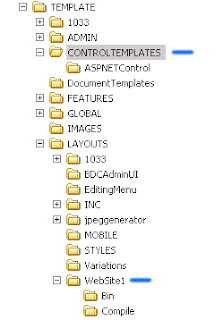
The two folders are geographically close, if you open up the layouts folder in windows explorer and enable your folder view, you will be able to see the
CONTROLTEMPLATES folder a couple of folders up.
2. Develop the User ControlI assume that you've created Web User Controls before and know what i'm talking about when i say "Develop the User Control".
I write all my code in C# and i use code-behind files.
I usually leave the
Page_Load method blank and create a new one to the effect of
protected void RenderWhateverImDoing() ~ and put all my code in there. That way i have exact control of where in my user control the code gets executed because my .ascx file looks like this:
<%@ Control Language="C#" AutoEventWireup="true" CodeFile="WhateverImDoing.ascx.cs" Inherits="WhateverImDoing" %>
<%RenderWhateverImDoing(); %> So in your
RenderWhateverImDoing() method, add the code:
Response.Write("Hello Sharepoint World!"); or something similar and save all files.
3. Copy the User Control to the CONTROLTEMPLATES folderAfter saving the files, go to the project folder in windows explorer and copy the
WhateverImDoing.ascx file and the
WhateverImDoing.ascx.cs files to the
CONTROLTEMPLATES folder.
4. Register the control.I assume you are familiar with the master page and layout page concepts and that you know how to create both and utilise them in the Sharepoint environment.
The beauty of this is that you can place your user control in either the master page or the layout page. Place it in the master page if you want your user-control to be available and active as part of the template or put it into a layout page if you wish to only make it available on one specific page. If you put it in a layout page you'll have to apply that layout to the page you want to affect in sharepoint via the "edit page settings" option in the "Actions" menu or via the "Manage content" section of sharepoint.
The control register page directive goes at the top of the page, just below all other page directives you already have. Note that page directives all start with "
<%@".
Now go ahead and add the registration page directive for your new user control:
<%@ Register Src="~/_controltemplates/WhateverImDoing.ascx" TagName="WhateverImDoing" TagPrefix="MyControls" %>5. Add the Server tag to the HTMLNow that you've registered the control, you need to reference it in the appropriate place by using it as a server control in HTML. Whatever HTML gets generated by your user control will replace your user control server tag at runtime. So in other words, wherever you put your Tag, thats where "Hello Sharepoint World!" will get inserted.
Your server tag will look like this:
<MyControls:WhateverImDoing id="WhateverImDoingControl" runat="server">And thats it! There is one last step to this if you've added your user control to a page layout file and that is to go and apply the specified layout to the page you want to display the user control on. Other than that all you need to do is go and test by navigating to the page (any page that has the customised master page applied to it if you used it in a master page).
IMPORTANT NOTE:Whenever you make changes to the code-behind of your user control, you need to "tap" the .ascx file. This entail modifying the .asxc page by either adding a space or making some other kind of negligible change to the file so that the modified date on the file changes. You need to do this in order to avoid caching problems in sharepoint. So when you've made code changes to your user control and the changes arent reflecting on the portal, it might just be that you forgot to "tap" the .ascx file and sharepoint is still showing you the old version.
-Fin


