Today i came across a problem in a web part i was developing.
I had a treeview inside a panel which in turn was inside an Ajax UpdatePanel.
The normal panel had its visibility set to false by default. And in the web part, clicking a button sets the visibility of that panel to true. I used this method to toggle the visibility of the treeview and related controls that resided with it on the panel.
Upon implementing this along with the UpdateProgress control and the EnsurePanelFix method, i started getting runtime errors whenever i tried to expand any of the treeview's nodes (all are collapsed by default).
After spending a lot of time troubleshooting and looking for answers, i discovered that the EnsurePanelFix method was causing the problem. And just for clarity, i'm not using the code provided by microsoft but rather the following simplified version:
ScriptManager.RegisterStartupScript(this,typeof(UnitBPUploadList),
"UpdatePanelFixup",
"_spOriginalFormAction = document.forms[0].action; _spSuppressFormOnSubmitWrapper=true;",
true);
And so i have found that the ONLY workaround for this is to dynamically add and remove the nodes of the treeview instead of making it visible and invisible each time the toggle is performed.
Everything else can be left on a panel and that panel can be set to visible=true or false as much as you like without having it affect anything else.
Just make sure that you NEVER touch the .visibility property of the TreeView control.
-
Showing posts with label sharepoint 2007. Show all posts
Showing posts with label sharepoint 2007. Show all posts
Monday, July 7, 2008


Tuesday, June 24, 2008
SPList fields - parsing source-code
Here is the source-code to obtain an html table of fields for any list:
(Please note that this example takes place inside the Render(HtmlTextWriter writer) method:
(Please note that this example takes place inside the Render(HtmlTextWriter writer) method:
using (SPSite site = new SPSite(SPContext.Current.Site.Url))
{
using (SPWeb web = site.OpenWeb(SPContext.Current.Web.ServerRelativeUrl))
{
SPList list = web.Lists["YourList"];
SPListItemCollection iCol = list.Items;
writer.Write("<table border=\"1\">");
writer.Write("<tr><td><strong>Field name</strong></td><td><strong>Sample value (if any)</strong></td></tr>");
for (int i = 0; i < iCol[0].Fields.Count; i++)
{
writer.Write("<tr><td><strong>");
writer.Write(iCol[0].Fields[i].Title);
writer.Write("</strong><br/>" + iCol[0].Fields[i].Description);
writer.Write("</td><td>");
writer.Write(iCol[0].GetFormattedValue(iCol[0].Fields[i].Title));
writer.Write("</td></tr>");
}
writer.Write("</table>");
}
}
SPList fields
If you've ever worked with fields from a coding point of view in sharepoint 2007 or plan to do so, then this list is invaluable to you.
It contains all the default fields for a SPList item. (Remember that pages are essentially list items and the pages collection is essentially a list).
See next post for source-code on how to replicate this table.
It contains all the default fields for a SPList item. (Remember that pages are essentially list items and the pages collection is essentially a list).
| Field name | Sample value (if any) |
| Content Type ID | 0x0100E65E7B14B0BC434CB9F70A29DDD8C22E |
| Approver Comments | |
| DocumentTitle | at work2.jpg |
| DocumentTitle | at work2.jpg |
| File Type | |
| ID | 3 |
| Content Type | Item |
| Modified | 6/24/2008 5:07 PM |
| Created | 2/20/2008 1:41 AM |
| Created By |  |
| Modified By | |
| Has Copy Destinations | |
| Copy Source | |
| owshiddenversion | 2 |
| Workflow Version | 1 |
| UI Version | 512 |
| Version | 1.0 |
| Attachments | False |
| Approval Status | Approved |
| Edit | |
| Select | 3 |
| Instance ID | |
| Order | 300 |
| GUID | {B16BDAD3-7279-4C90-890E-D64D4FF9FE6E} |
| Workflow Instance ID | |
| URL Path | /corporate/divisions/officeoftheceo/capacitydepoloyment/agencies/Lists/BusinessPortalUploadRecord/3_.000 |
| Path | corporate/divisions/officeoftheceo/capacitydepoloyment/agencies/Lists/BusinessPortalUploadRecord |
| Modified | 6/24/2008 5:07 PM |
| Created | 2/20/2008 1:41 AM |
| Item Type | 0 |
| Effective Permissions Mask | 0x7fffffffffffffff |
| Name | 3_.000 |
| Unique Id | 389a8e63-0d5d-42c8-b8dc-a3702f566496 |
| ProgId | |
| ScopeId | {8FF6C25F-7D37-4569-823F-4E1C2433F5CF} |
| HTML File Type | |
| Edit Menu Table Start | 3_.000 |
| Edit Menu Table End | 3 |
| Name | 3_.000 |
| Name | 3_.000 |
| Type | |
| Server Relative URL | /corporate/divisions/officeoftheceo/capacitydepoloyment/agencies/Lists/BusinessPortalUploadRecord/3_.000 |
| Encoded Absolute URL | http://dvbmdas15:101/corporate/divisions/officeoftheceo/capacitydepoloyment/agencies/Lists/BusinessPortalUploadRecord/3_.000 |
| File Name | 3_ |
| Property Bag | |
| Level | 1 |
| Is Current Version | Yes |
See next post for source-code on how to replicate this table.
Using AJAX UpdatePanel since Sharepoint SP1
When you start with AJAX and sharepoint 2007 webpart after the year 2007, then it can be pretty daunting because most of the information out there on combining AJAX with Sharepoint 2007 was written in 2007 (end even before that in 2006).
This information is no longer applicable because Sharepoint 2007 SP1 supports AJAX. Sure you still have to modify a couple of things such as the web.config etc. (check my previous posts for a list of checks).
There are hundreds of websites out there that want to teach you how to use AJAX with Sharepoint 2007. Hell there are even several websites that want to teach you how to use AJAX with Sharepoint 2007 BETA!!!. People should surely take more responsibility for these posts and UPDATE or DELETE them when they are no longer applicable. Unfortunately this does not happen.
So let me tell you now that next time you google for information on how to do anything AJAX-related in sharepoint 2007 SP1, do yourself a favour and filter for articles written AFTER January 2008.
So you can safely ignore all those EnsureUpdatePanelFix() and similar pieces of code. Also you can safely ignore BaseWebPart and all other third-party webparts especially designed for ajax use in sharepoint. Using them will just give you more trouble than what its worth.
This information is no longer applicable because Sharepoint 2007 SP1 supports AJAX. Sure you still have to modify a couple of things such as the web.config etc. (check my previous posts for a list of checks).
There are hundreds of websites out there that want to teach you how to use AJAX with Sharepoint 2007. Hell there are even several websites that want to teach you how to use AJAX with Sharepoint 2007 BETA!!!. People should surely take more responsibility for these posts and UPDATE or DELETE them when they are no longer applicable. Unfortunately this does not happen.
So let me tell you now that next time you google for information on how to do anything AJAX-related in sharepoint 2007 SP1, do yourself a favour and filter for articles written AFTER January 2008.
So you can safely ignore all those EnsureUpdatePanelFix() and similar pieces of code. Also you can safely ignore BaseWebPart and all other third-party webparts especially designed for ajax use in sharepoint. Using them will just give you more trouble than what its worth.
Wednesday, June 18, 2008
Using AjaxControlToolkit Accordion Control with Sharepoint 2007 web part
Should you wish to use the AjaxControlToolkit accordion control in a Sharepoint 2007 web part,
firstly make sure you have gone through the following list of prerequisites and notes:
Brief overview of requirements for using Ajax with Sharepoint 2007 web parts
firstly make sure you have gone through the following list of prerequisites and notes:
Brief overview of requirements for using Ajax with Sharepoint 2007 web parts
- You have to make sure you programmatically create the control in the web part codebehind. Do it in the method "protected override void CreateChildControls()"
- Define the control as a global variable:
Accordion Accordion1; - Initialise the control in the CreateChildControls() method
Accordion1 = new Accordion(); - Make sure you give it an ID
Accordion1.ID = "Accordion1"; - Set the selected index
Accordion1.SelectedIndex = 0; - Set other properties such as FadeTransitions and TransitionDuration etc
Accordion1.FadeTransitions = true;
Accordion1.FramesPerSecond = 20;
Accordion1.TransitionDuration = 100;
Accordion1.AutoSize = AutoSize.none; - Add the accordion control to the page's controls collection
this.Controls.Add(Accordion1) (note: this still takes place in the CreateChildControls() method) - Add panes in the following way:
AccordionPane pane1 = new AccordionPane()
string header = "this is the pane header";
pane1.HeaderContainer.Controls.Add(new LiteralControl(header);
string content = "this is the pane content";
pane1.ContentContainer.Controls.Add(new LiteralControl(content));
Accordion1.Panes.Add(pane1); - Remember that the following line of code must ALWAYS be at the end of the CreateChildControls() method:
base.CreateChildControls(); - In your web part's Render(HtmlTextWriter writer) method
add the following at the location where you want the control to be displayed:
this.Accordion1.RenderControl(writer);
Brief overview of requirements for using Ajax with Sharepoint 2007 web parts
If you want to use the AjaxControlToolkit controls with Sharepoint 2007,
Notes/Checklist:
Notes/Checklist:
- Installed the Ajax Server Extensions
- Installed the AjaxControlToolkit
- Upgraded Sharepoint to Service Pack 1 or later
- Upgraded WSS 3.0 to Service Pack 1 or later
- Copied the AjaxControlToolkit.dll file to the bin folder of your portal under C:\Inetpub\wwwroot\wss\VirtualDirectories\yoursite\bin
- Updated the Web.config by adding relevant entries to support Ajax -> C:\Inetpub\wwwroot\wss\VirtualDirectories\80\web.config (copy entries from web.config in a website you created by using the Ajax Enabled website starter kit in Visual Studio)
- FORGET ABOUT SMARTPART or any other 3rd party web parts that convert user controls into web parts. That was a crude workaround for versions of sharepoint before service pack 1.
- Use the web part development add-in for visual studio (use it to develop, deploy and debug)
- Add Scriptmanager control to your masterpage
<WebPartPages:SPWebPartManager runat="server"/>
<asp:ScriptManager ID="ScriptManager1" runat="server"/> - Remember to publish your masterpage after adding the scriptmanager
- Toolkit controls have to be dynamically constructed in web part codebehind
- If your webparts are iterating through sub-sites remember to use the SpSecurity.Delegate functionality as described in an earlier post in this blog.
Remove bad or broken web parts from a page
During the process of developing web parts, you might stumble on to situations where a web part that you've developed is causing errors on a page.
In a wide variety of scenarios, you might want to remove that web part from the specific page but you are unable to do this because the page cannot render.
To remedy this, you can use the Web Part Maintenance page for that specific page.
There is a long convoluted way of reaching this page but the straight-forward way of reaching it is:
> Add the following to the and of your URL: ?contents=1
Example: http://www.mysite.com/sitecol/default.aspx?contents=1
In a wide variety of scenarios, you might want to remove that web part from the specific page but you are unable to do this because the page cannot render.
To remedy this, you can use the Web Part Maintenance page for that specific page.
There is a long convoluted way of reaching this page but the straight-forward way of reaching it is:
> Add the following to the and of your URL: ?contents=1
Example: http://www.mysite.com/sitecol/default.aspx?contents=1
Thursday, March 6, 2008
Requires ScriptManager
ISSUES ISSUES ISSUES!
I got the whole AJAX thing workin in MOSS2007 and its really cool, i've got this accordion control that im using. Thing is tho that it came time to test other user roles and i have this dummy contributor user and once i swapped to that user... it stopped working!!
I suddenly got the "Accordion1_AccordionExtender" requires ScriptManager blA bla bla... and i'm like ..what the frikken hell???
So after rummaging around on yahoo for issues with security i realised that i hadnt PUBLISHED THE FRICKEN MASTERPAGE!!!!!
So yeah hope that saves someone else from wasting all that crappy time!
I got the whole AJAX thing workin in MOSS2007 and its really cool, i've got this accordion control that im using. Thing is tho that it came time to test other user roles and i have this dummy contributor user and once i swapped to that user... it stopped working!!
I suddenly got the "Accordion1_AccordionExtender" requires ScriptManager blA bla bla... and i'm like ..what the frikken hell???
So after rummaging around on yahoo for issues with security i realised that i hadnt PUBLISHED THE FRICKEN MASTERPAGE!!!!!
So yeah hope that saves someone else from wasting all that crappy time!
Wednesday, March 5, 2008
RunWithElevatedPrivelages
I'm sure many many people have tried building web parts that need to perform operations to which the currently logged user potentially doesnt have security clearance for.
I'm one of those persons.
The easiest most effective way to accomplish this is to use the SPSecurity.RunWithElevatedPrivelages(delegate()) method.
When i started looking into this i found several sources indicating that the correct way of using this method is as follows:
SPWeb objWeb = SPControl.GetContextWeb(Context);
SPSecurity.RunWithElevatedPrivileges(delegate()
{
using (SPSite objElevatedSite = new SPSite(objWeb.Site.ID))
{
using (SPWeb objElevatedWeb = objElevatedSite.OpenWeb())
{
// Allow unsafe updates because you can’t save changes
// during HTTP GET requests.
objElevatedWeb.AllowUnsafeUpdates = true;
SPNavigationNode node = new SPNavigationNode( å
“My Custom Node”, “http://node.url”, true);
objElevatedWeb.Navigation.QuickLaunch.AddAsFirst(node);
objElevatedWeb.Update();
}
}
}
);
And this worked fine for me when using Web User Controls. But somehow when i used this structure in web parts, i got the "using disposed SPWeb object no longer supported" error and it was difficult in this context to select an SPWeb which was not the current contextual web.
Thus i submit to thee THIS method which worked perfectly for me.
SPSecurity.CodeToRunElevated objCode = new SPSecurity.CodeToRunElevated(YourMethod);
SPSecurity.RunWithElevatedPrivileges(objCode);
In this scenario, "YourMethod" is a separate method which you call via the delegate.
Make sure to select any specific webs in the following way (or similar)
SPWeb selectedWeb = SPControl.GetContextWeb(Context).Webs[_targetSiteCollection];
(Actually I havent confirmed this but it worked for me and thats where i stopped).
Hope this helps.
I'm one of those persons.
The easiest most effective way to accomplish this is to use the SPSecurity.RunWithElevatedPrivelages(delegate()) method.
When i started looking into this i found several sources indicating that the correct way of using this method is as follows:
SPWeb objWeb = SPControl.GetContextWeb(Context);
SPSecurity.RunWithElevatedPrivileges(delegate()
{
using (SPSite objElevatedSite = new SPSite(objWeb.Site.ID))
{
using (SPWeb objElevatedWeb = objElevatedSite.OpenWeb())
{
// Allow unsafe updates because you can’t save changes
// during HTTP GET requests.
objElevatedWeb.AllowUnsafeUpdates = true;
SPNavigationNode node = new SPNavigationNode( å
“My Custom Node”, “http://node.url”, true);
objElevatedWeb.Navigation.QuickLaunch.AddAsFirst(node);
objElevatedWeb.Update();
}
}
}
);
And this worked fine for me when using Web User Controls. But somehow when i used this structure in web parts, i got the "using disposed SPWeb object no longer supported" error and it was difficult in this context to select an SPWeb which was not the current contextual web.
Thus i submit to thee THIS method which worked perfectly for me.
SPSecurity.CodeToRunElevated objCode = new SPSecurity.CodeToRunElevated(YourMethod);
SPSecurity.RunWithElevatedPrivileges(objCode);
In this scenario, "YourMethod" is a separate method which you call via the delegate.
Make sure to select any specific webs in the following way (or similar)
SPWeb selectedWeb = SPControl.GetContextWeb(Context).Webs[_targetSiteCollection];
(Actually I havent confirmed this but it worked for me and thats where i stopped).
Hope this helps.
Thursday, July 26, 2007
Web User Controls in Sharepoint
As a Sharepoint 2007 / WSS developer you sometimes need to achieve some sort of design constrained functionality which just cannot be solved by using web parts or anything else but user controls.
User controls are perfect because you can put them anywhere and not have to worry about sharepoint server controls and the like.
Let me guide you through the process of creating a simple "hello world" user control and then implementing it into your sharepoint site's home page.
1. Create a web project
For the sake of convenience, i strongly suggest that you create your web project in the following directory:
C:\Program Files\Common Files\Microsoft Shared\web server extensions\12\TEMPLATE\LAYOUTS\WebSite1\
(You can replace "WebSite1" with whatever you prefer to call the folder)
The reason for this is that you're gonna have to copy and paste your user controls from this directory to the CONTROLTEMPLATES directory at the following location:
C:\Program Files\Common Files\Microsoft Shared\web server extensions\12\TEMPLATE\CONTROLTEMPLATES
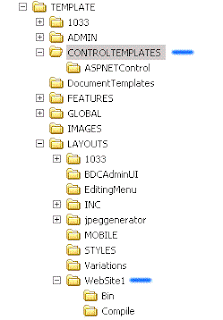 The two folders are geographically close, if you open up the layouts folder in windows explorer and enable your folder view, you will be able to see the CONTROLTEMPLATES folder a couple of folders up.
2. Develop the User Control
I assume that you've created Web User Controls before and know what i'm talking about when i say "Develop the User Control".
I write all my code in C# and i use code-behind files.
I usually leave the Page_Load method blank and create a new one to the effect of
protected void RenderWhateverImDoing() ~ and put all my code in there. That way i have exact control of where in my user control the code gets executed because my .ascx file looks like this:
<%@ Control Language="C#" AutoEventWireup="true" CodeFile="WhateverImDoing.ascx.cs" Inherits="WhateverImDoing" %>
<%RenderWhateverImDoing(); %>
So in your RenderWhateverImDoing() method, add the code: Response.Write("Hello Sharepoint World!"); or something similar and save all files.
3. Copy the User Control to the CONTROLTEMPLATES folder
After saving the files, go to the project folder in windows explorer and copy the WhateverImDoing.ascx file and the WhateverImDoing.ascx.cs files to the CONTROLTEMPLATES folder.
4. Register the control.
I assume you are familiar with the master page and layout page concepts and that you know how to create both and utilise them in the Sharepoint environment.
The beauty of this is that you can place your user control in either the master page or the layout page. Place it in the master page if you want your user-control to be available and active as part of the template or put it into a layout page if you wish to only make it available on one specific page. If you put it in a layout page you'll have to apply that layout to the page you want to affect in sharepoint via the "edit page settings" option in the "Actions" menu or via the "Manage content" section of sharepoint.
The control register page directive goes at the top of the page, just below all other page directives you already have. Note that page directives all start with "<%@".
Now go ahead and add the registration page directive for your new user control:
<%@ Register Src="~/_controltemplates/WhateverImDoing.ascx" TagName="WhateverImDoing" TagPrefix="MyControls" %>
5. Add the Server tag to the HTML
Now that you've registered the control, you need to reference it in the appropriate place by using it as a server control in HTML. Whatever HTML gets generated by your user control will replace your user control server tag at runtime. So in other words, wherever you put your Tag, thats where "Hello Sharepoint World!" will get inserted.
Your server tag will look like this:
<MyControls:WhateverImDoing id="WhateverImDoingControl" runat="server">
And thats it! There is one last step to this if you've added your user control to a page layout file and that is to go and apply the specified layout to the page you want to display the user control on. Other than that all you need to do is go and test by navigating to the page (any page that has the customised master page applied to it if you used it in a master page).
IMPORTANT NOTE:
Whenever you make changes to the code-behind of your user control, you need to "tap" the .ascx file. This entail modifying the .asxc page by either adding a space or making some other kind of negligible change to the file so that the modified date on the file changes. You need to do this in order to avoid caching problems in sharepoint. So when you've made code changes to your user control and the changes arent reflecting on the portal, it might just be that you forgot to "tap" the .ascx file and sharepoint is still showing you the old version.
-Fin
User controls are perfect because you can put them anywhere and not have to worry about sharepoint server controls and the like.
Let me guide you through the process of creating a simple "hello world" user control and then implementing it into your sharepoint site's home page.
1. Create a web project
For the sake of convenience, i strongly suggest that you create your web project in the following directory:
C:\Program Files\Common Files\Microsoft Shared\web server extensions\12\TEMPLATE\LAYOUTS\WebSite1\
(You can replace "WebSite1" with whatever you prefer to call the folder)
The reason for this is that you're gonna have to copy and paste your user controls from this directory to the CONTROLTEMPLATES directory at the following location:
C:\Program Files\Common Files\Microsoft Shared\web server extensions\12\TEMPLATE\CONTROLTEMPLATES
 The two folders are geographically close, if you open up the layouts folder in windows explorer and enable your folder view, you will be able to see the CONTROLTEMPLATES folder a couple of folders up.
2. Develop the User Control
I assume that you've created Web User Controls before and know what i'm talking about when i say "Develop the User Control".
I write all my code in C# and i use code-behind files.
I usually leave the Page_Load method blank and create a new one to the effect of
protected void RenderWhateverImDoing() ~ and put all my code in there. That way i have exact control of where in my user control the code gets executed because my .ascx file looks like this:
<%@ Control Language="C#" AutoEventWireup="true" CodeFile="WhateverImDoing.ascx.cs" Inherits="WhateverImDoing" %>
<%RenderWhateverImDoing(); %>
So in your RenderWhateverImDoing() method, add the code: Response.Write("Hello Sharepoint World!"); or something similar and save all files.
3. Copy the User Control to the CONTROLTEMPLATES folder
After saving the files, go to the project folder in windows explorer and copy the WhateverImDoing.ascx file and the WhateverImDoing.ascx.cs files to the CONTROLTEMPLATES folder.
4. Register the control.
I assume you are familiar with the master page and layout page concepts and that you know how to create both and utilise them in the Sharepoint environment.
The beauty of this is that you can place your user control in either the master page or the layout page. Place it in the master page if you want your user-control to be available and active as part of the template or put it into a layout page if you wish to only make it available on one specific page. If you put it in a layout page you'll have to apply that layout to the page you want to affect in sharepoint via the "edit page settings" option in the "Actions" menu or via the "Manage content" section of sharepoint.
The control register page directive goes at the top of the page, just below all other page directives you already have. Note that page directives all start with "<%@".
Now go ahead and add the registration page directive for your new user control:
<%@ Register Src="~/_controltemplates/WhateverImDoing.ascx" TagName="WhateverImDoing" TagPrefix="MyControls" %>
5. Add the Server tag to the HTML
Now that you've registered the control, you need to reference it in the appropriate place by using it as a server control in HTML. Whatever HTML gets generated by your user control will replace your user control server tag at runtime. So in other words, wherever you put your Tag, thats where "Hello Sharepoint World!" will get inserted.
Your server tag will look like this:
<MyControls:WhateverImDoing id="WhateverImDoingControl" runat="server">
And thats it! There is one last step to this if you've added your user control to a page layout file and that is to go and apply the specified layout to the page you want to display the user control on. Other than that all you need to do is go and test by navigating to the page (any page that has the customised master page applied to it if you used it in a master page).
IMPORTANT NOTE:
Whenever you make changes to the code-behind of your user control, you need to "tap" the .ascx file. This entail modifying the .asxc page by either adding a space or making some other kind of negligible change to the file so that the modified date on the file changes. You need to do this in order to avoid caching problems in sharepoint. So when you've made code changes to your user control and the changes arent reflecting on the portal, it might just be that you forgot to "tap" the .ascx file and sharepoint is still showing you the old version.
-Fin
Subscribe to:
Posts (Atom)
